Creating a New macOS Project with a GUI
Xcode is a large application that serves several purposes for software developers.
Many different types of projects can be created for different Apple platforms.
This short tutorial will show you how to create a project that:
- runs on macOS
- shows a graphical user interface (GUI)
Create the project
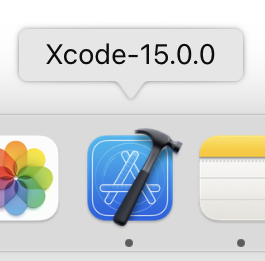
To create a playground, make sure that Xcode is in the foreground on your computer by clicking it's icon in the Dock:
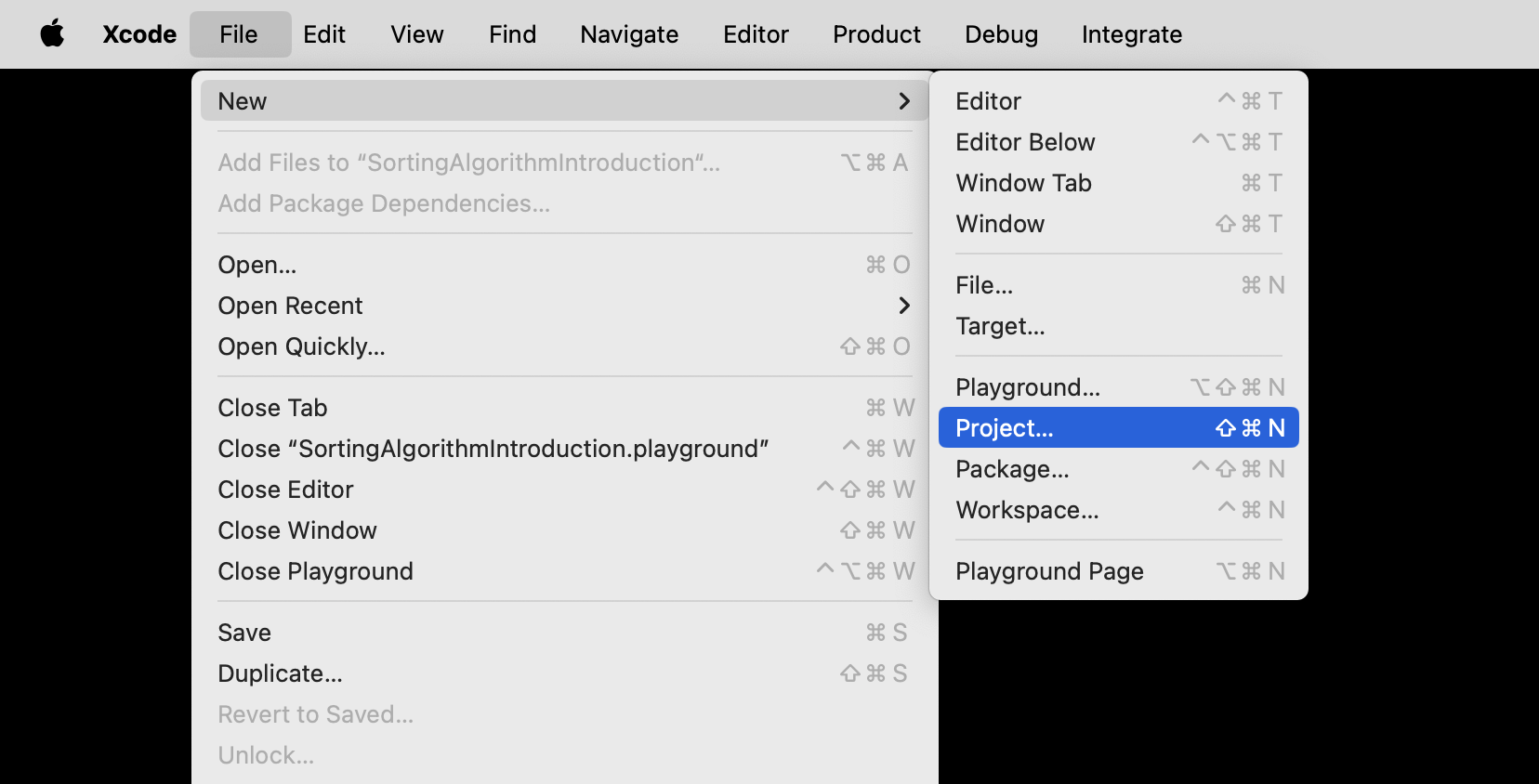
From the menu bar at top left, choose File > New > Project...:
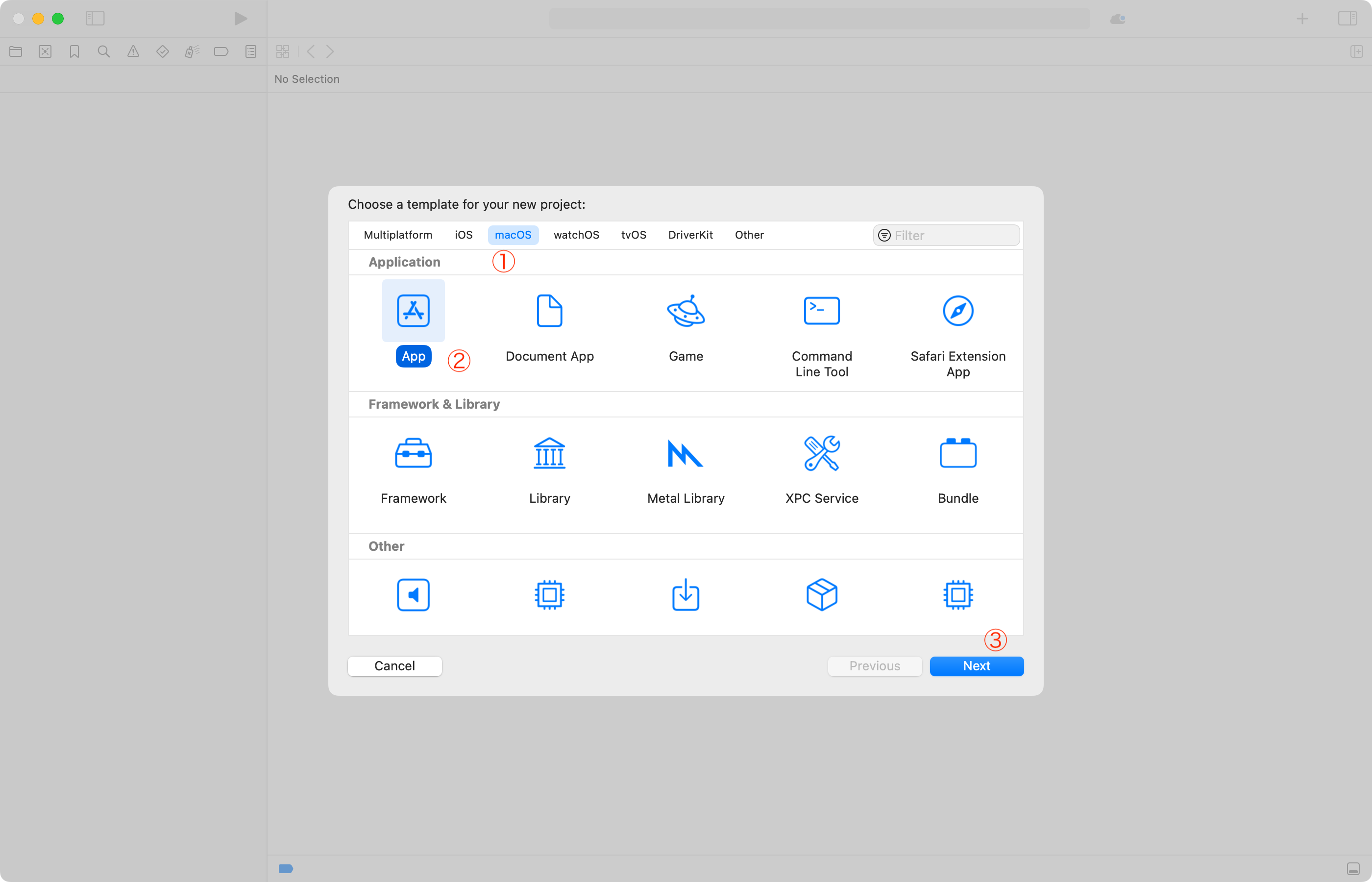
You will see the following window – here, choose the macOS tab, then App, and then Next:
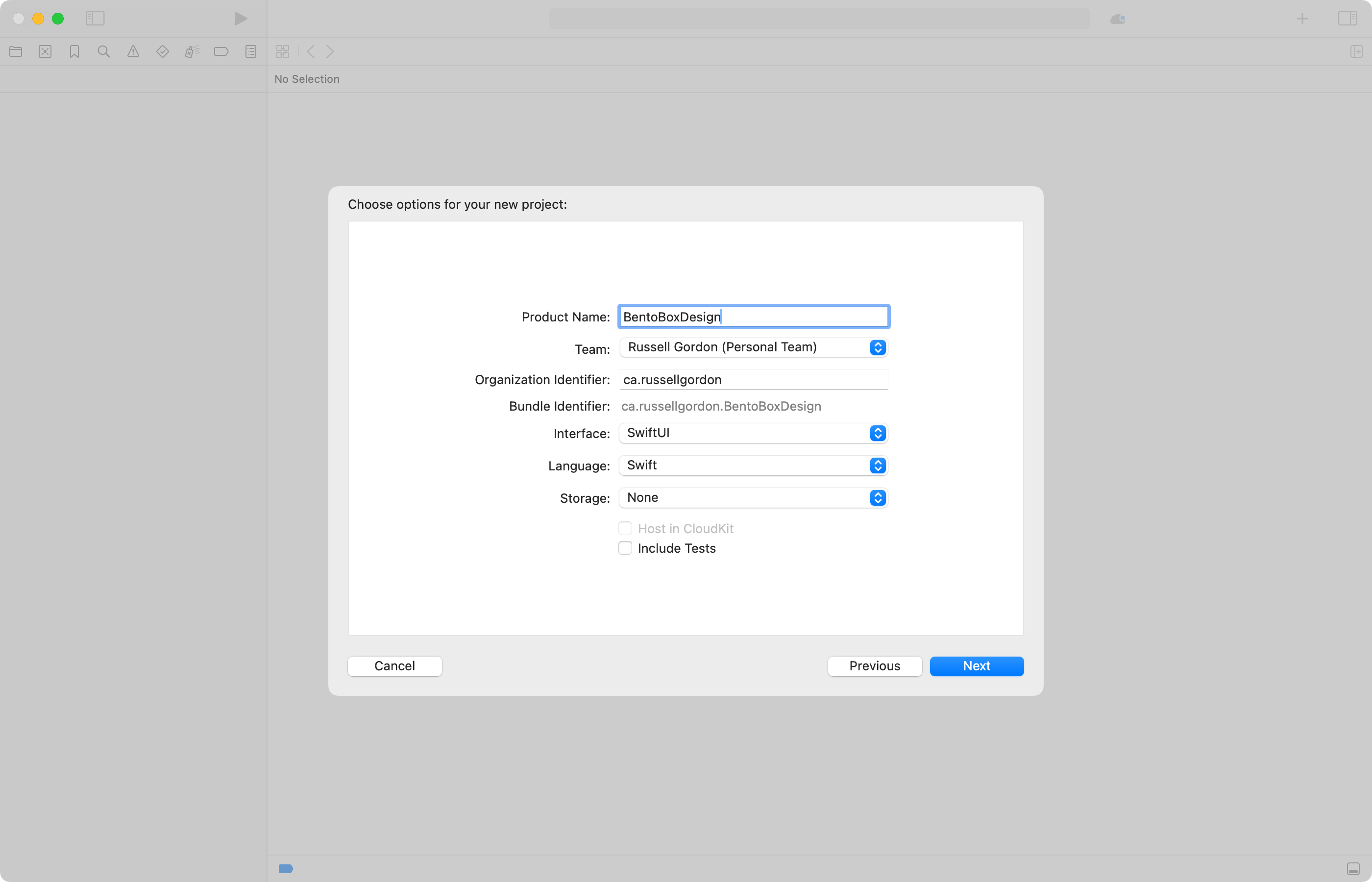
On the following screen, give your project:
- a descriptive name, based on what idea you are exploring
- select your team
- NOTE: Log in with the Apple ID tied to your LCS email address, if necessary.
- provide an organization identifier
- NOTE: If your name is Stephanie Laroux, use
ca.stephanielaroux
- NOTE: If your name is Stephanie Laroux, use
- interface should be SwiftUI
- language should be Swift
- storage should be None
- no checkmark beside Include Tests
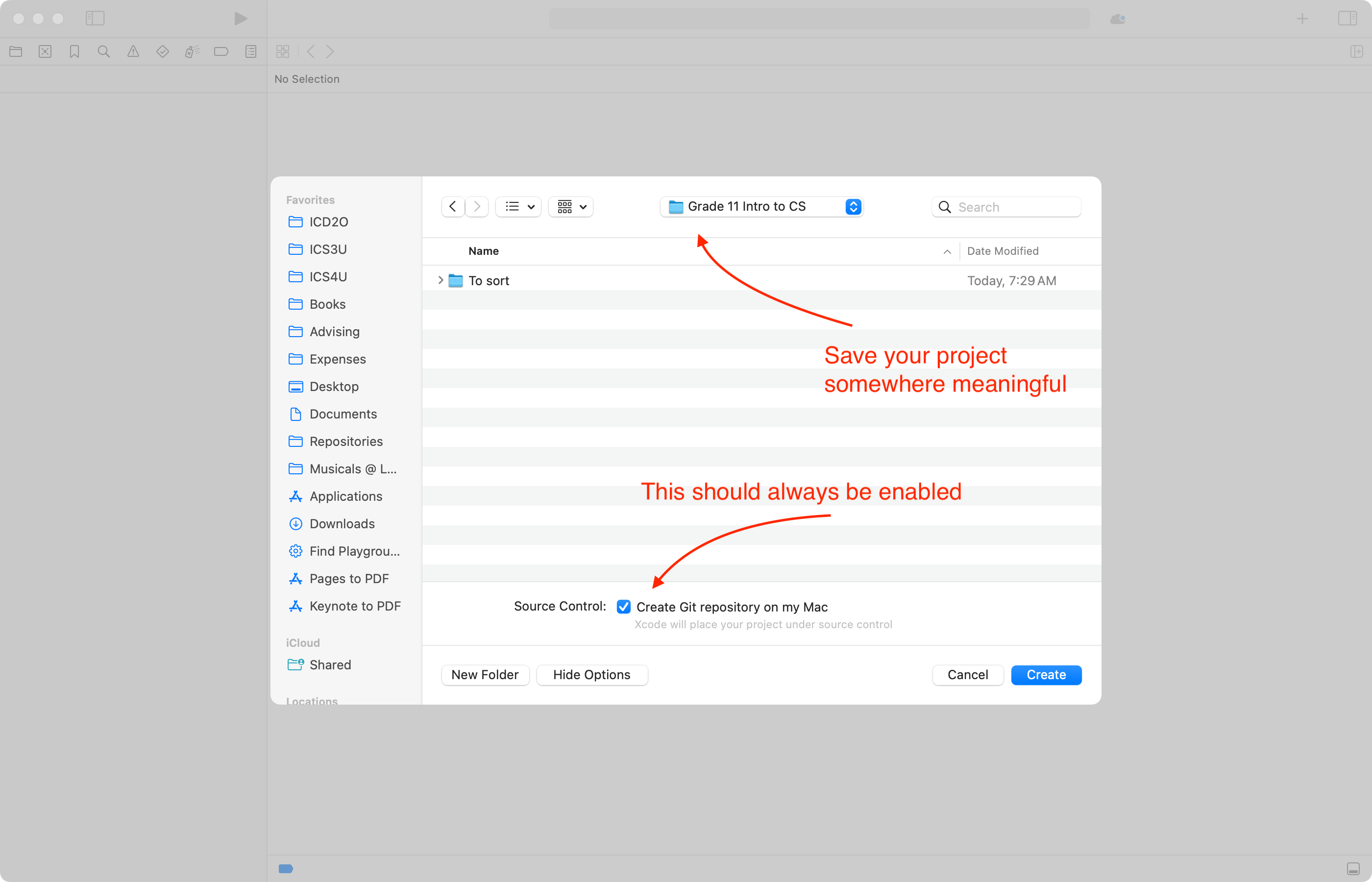
On the following screen, choose where to save your project – be sure that source control is enabled:
Begin coding
You will see the following when your project first opens:
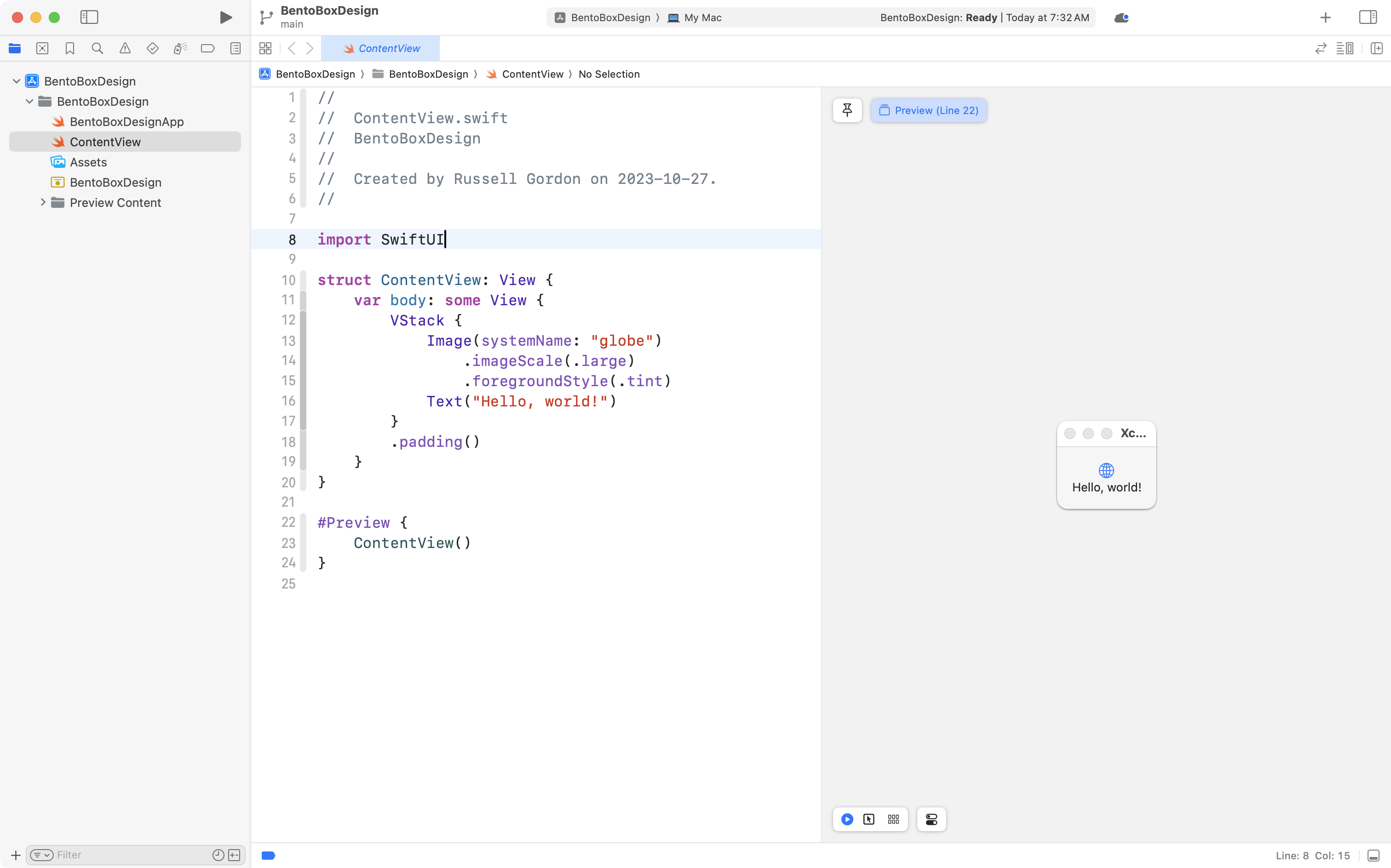
As you change code at left, the preview window updates at right.