Update Xcode and Simulators
In some situations, when previewing applications or using the Simulator, Xcode 15.0 would use more computing resources than expected, leading to high CPU usage and excessive battery drain on laptop computers.
Xcode 15.2 and the updated iOS 17.2 simulator runtime reportedly fix this issue; anecdotally Mr. Gordon has observed this to be true.
Update Xcode using Xcodes
Launch the Xcodes app on your computer.
Recall that Xcodes is an application that helps you manage the installation of Xcode, which is the programming environment we use.
Install Xcode 15.2 – depending on how much disk space you have on your computer, you may keep old versions of Xcode around if you wish:
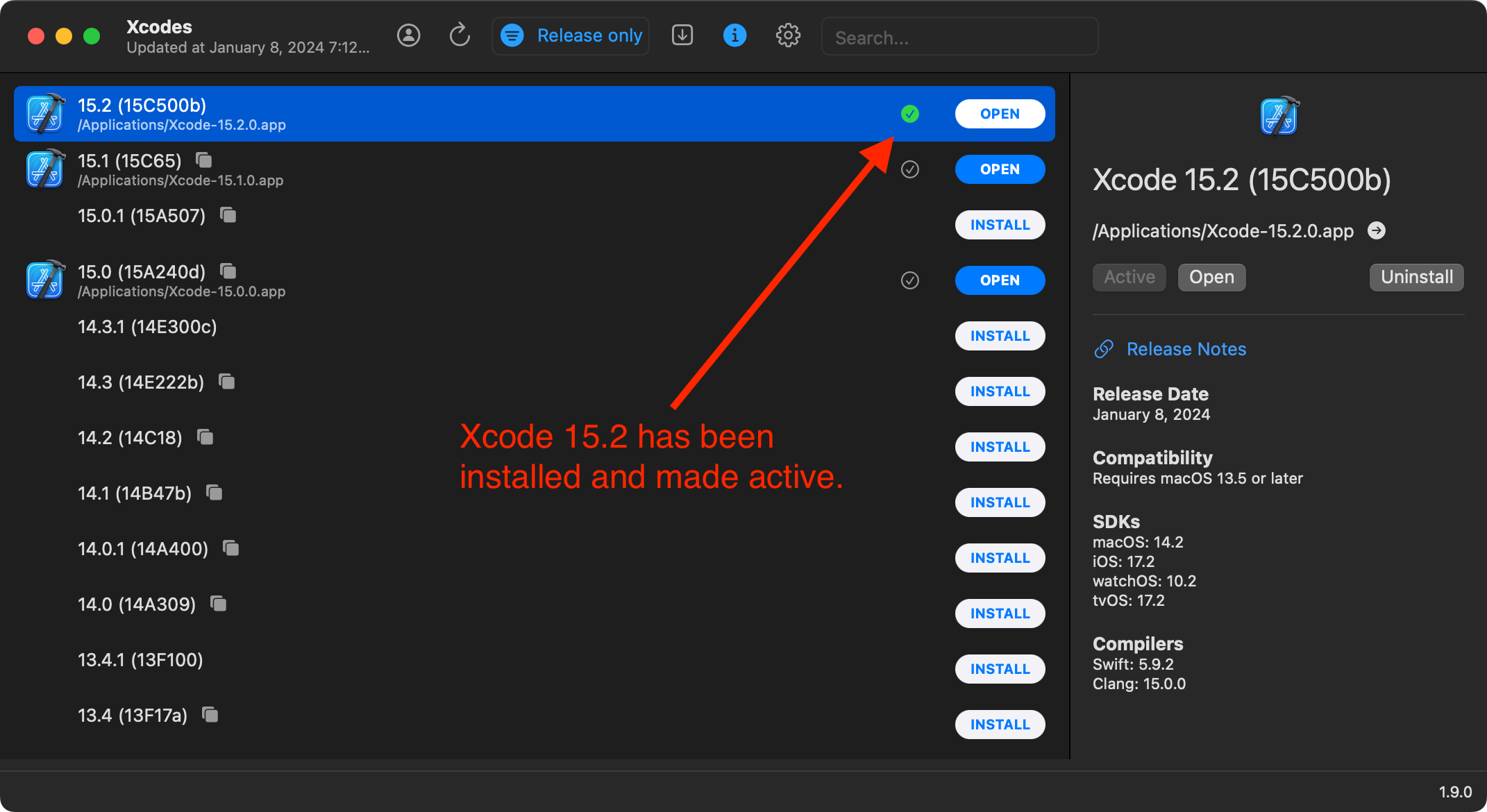
Be sure that Xcode 15.2 is the "active" version of Xcode on your computer. You should see the green checkmark noted above in the screenshot.
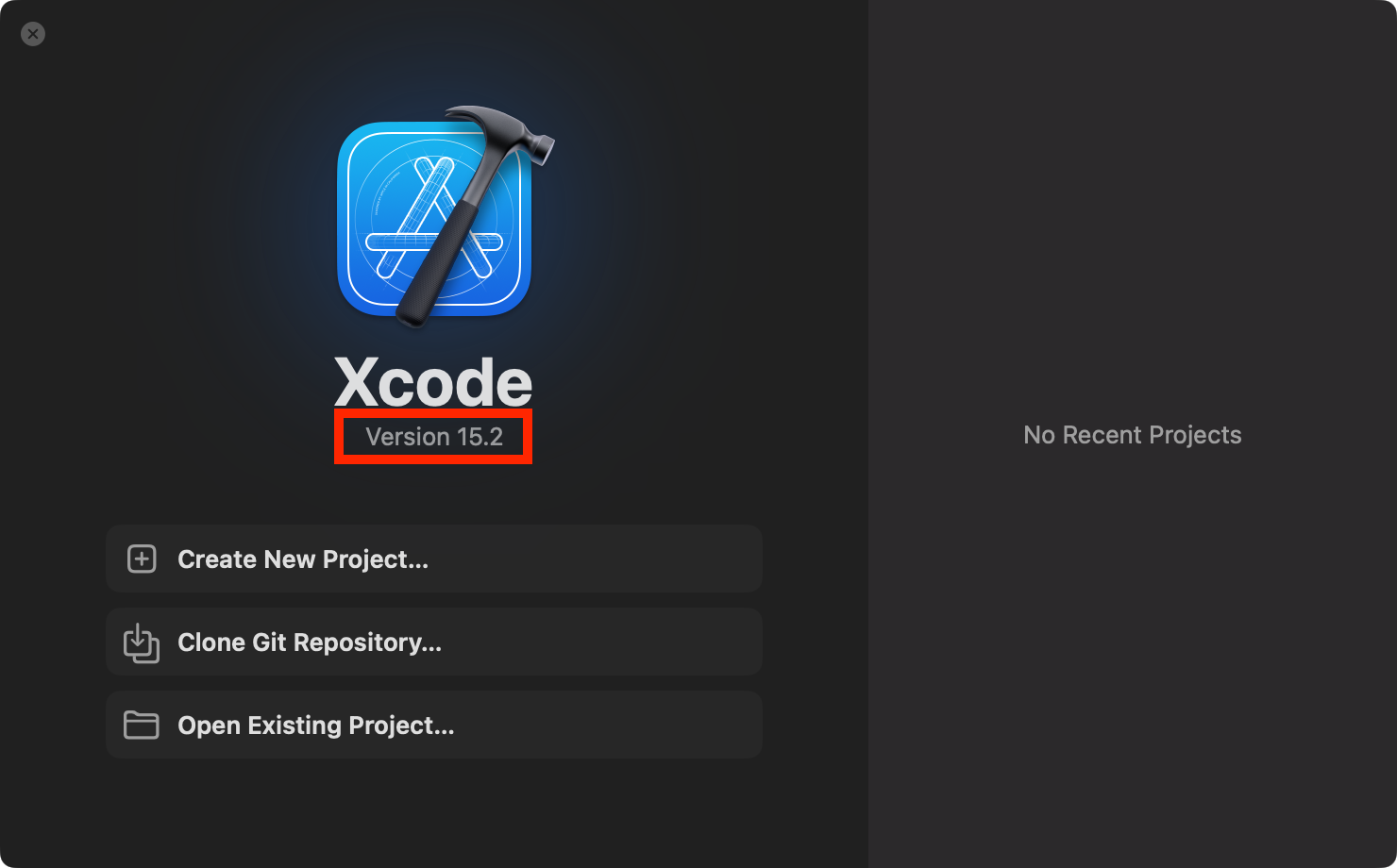
Open Xcode 15.2 – check that you launched the correct version:
Remove old simulators
Follow the menu sequence Xcode > Settings... and then select the Platforms tab:
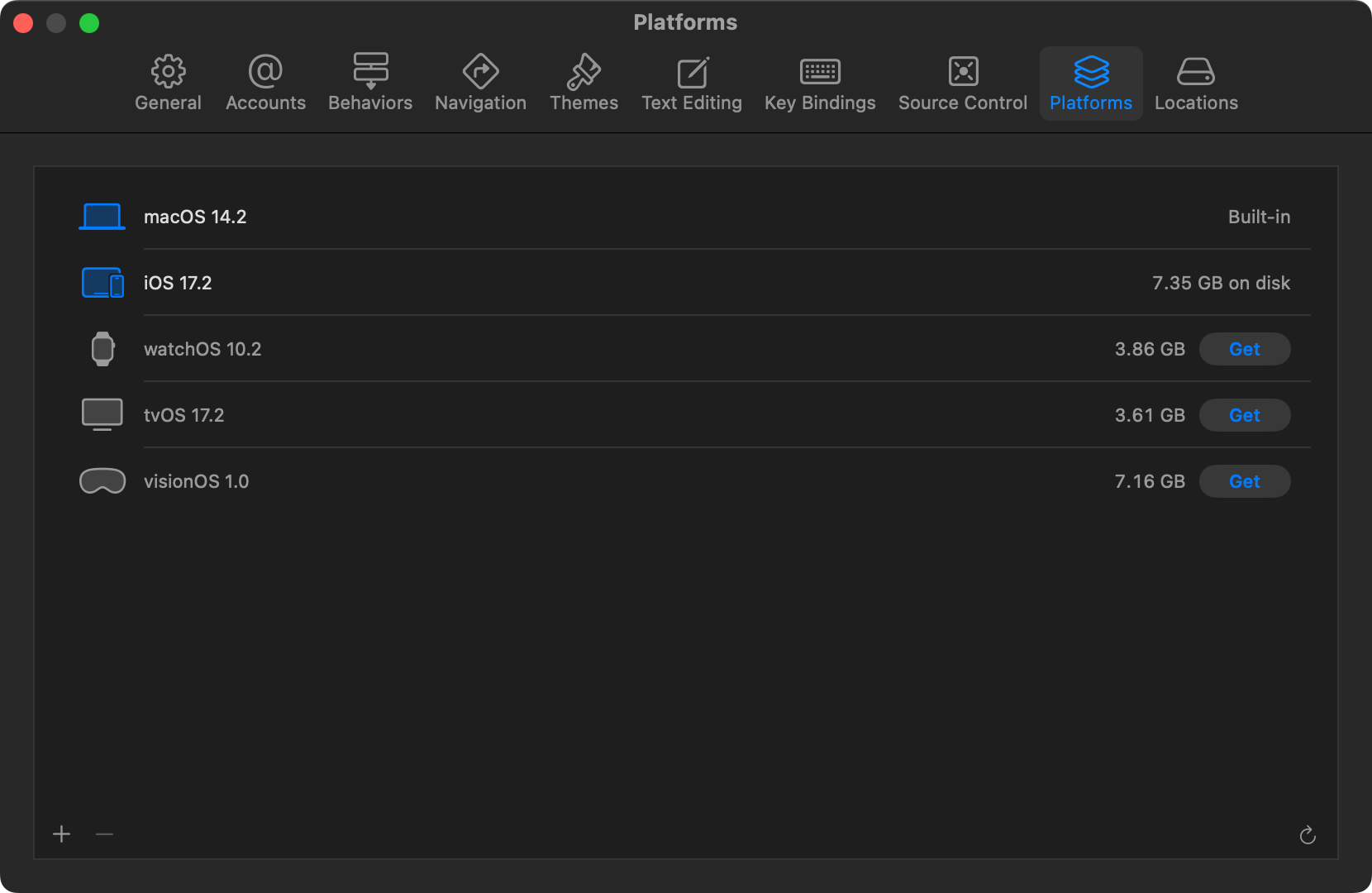
As needed, remove old simulators and ensure that you have the iOS 17.2 simulator installed.
Remove derived data
When building projects, Xcode creates caches that make later project builds faster.
To ensure that projects you work with will not encounter the high CPU usage bug, we will clear the caches created by earlier versions of Xcode.
Follow the menu sequence Xcode > Settings... and then select the Platforms tab:
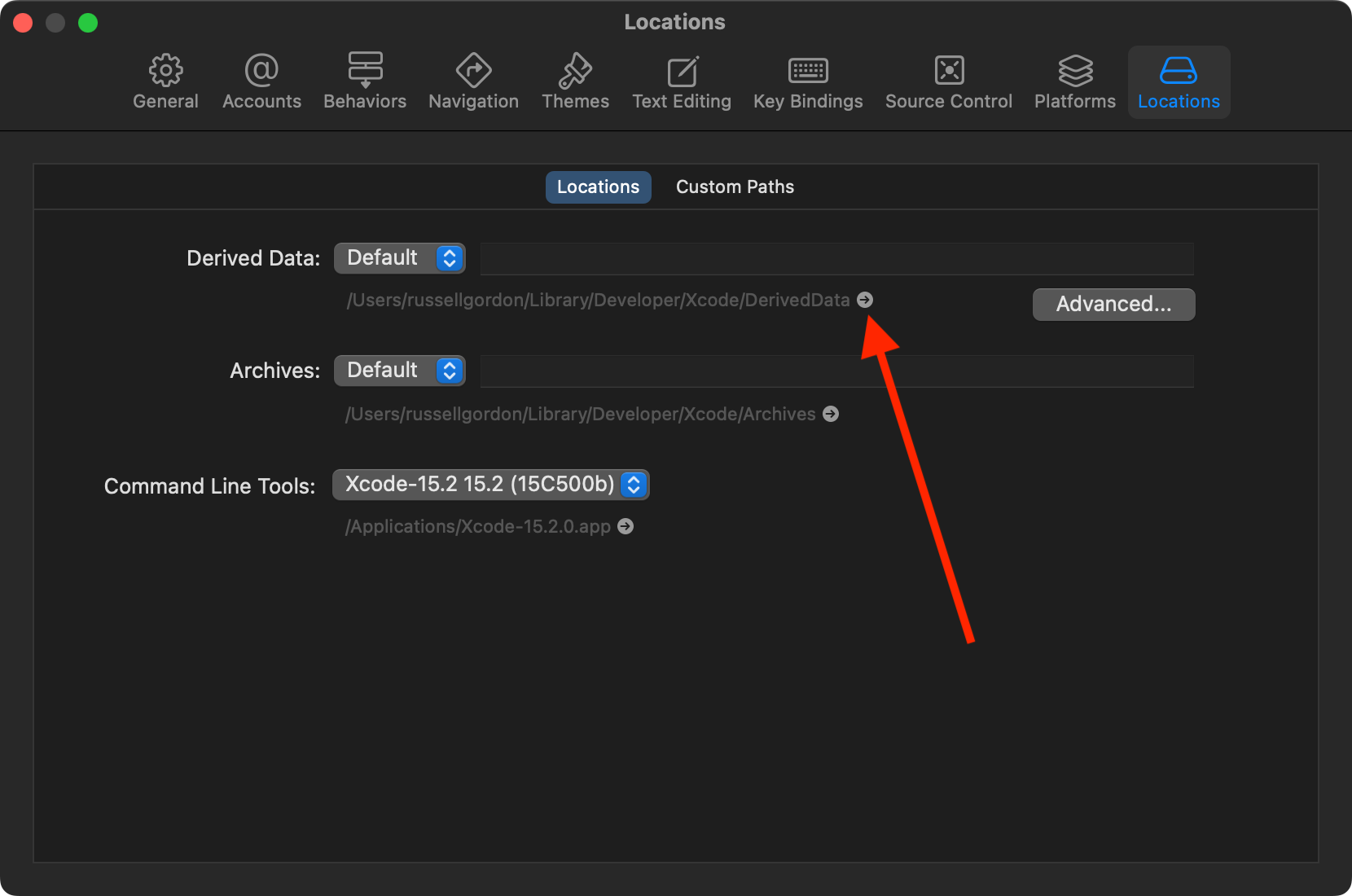
Click the small arrow next the the filesystem path for the Derived Data folder.
This will open the Finder to that folder – you can then delete it by moving it to the trash:
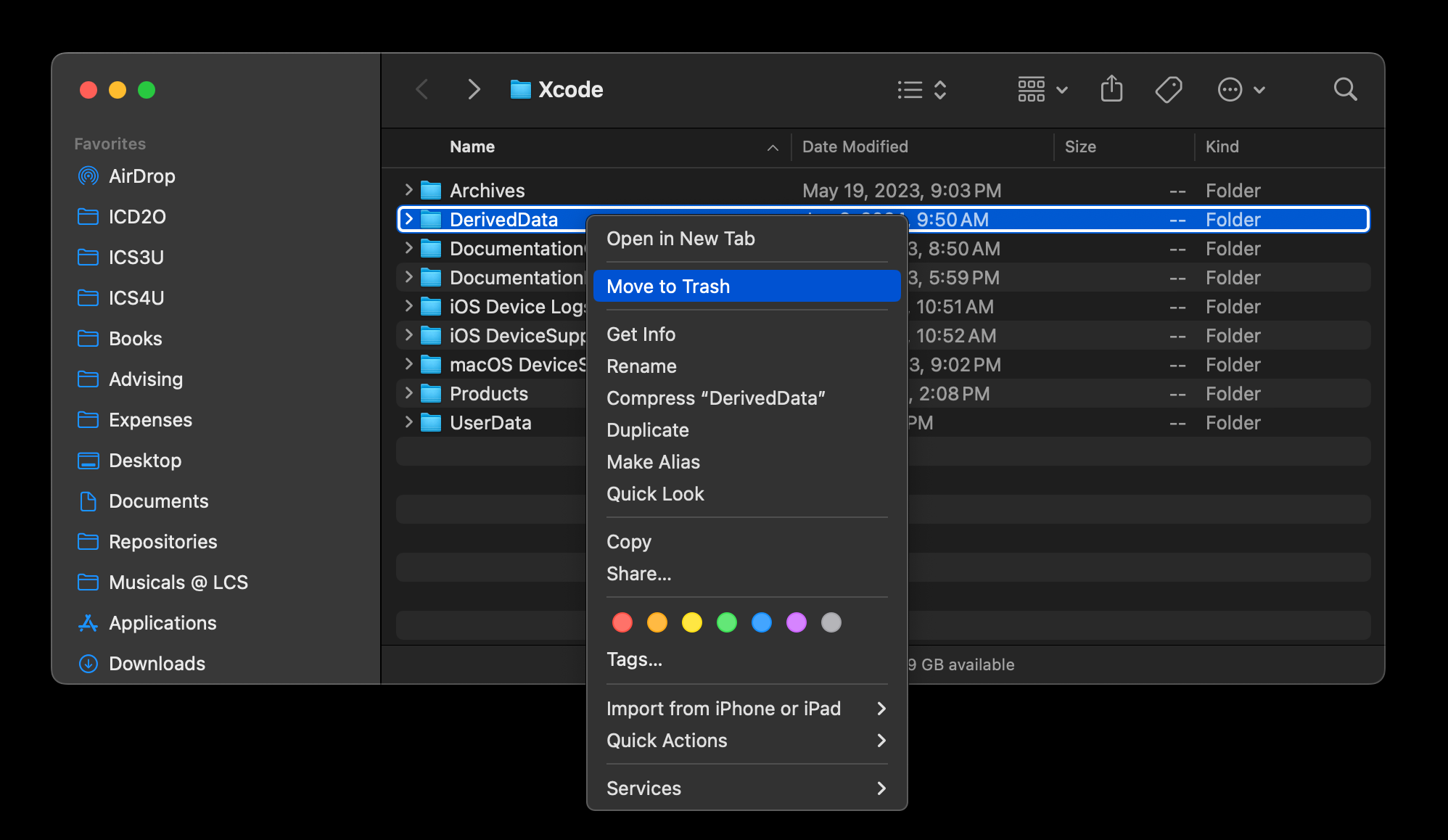
Xcode will create the folder again the next time a project is built.